Blox Fruits: How to Create a Crew
An easy way to team up with other players!

Tell us about your article reading experience.
- No
- Sort of
- Yes

In Blox Fruits, Crews are the ultimate way to team up with other players to complete more difficult quests, take down powerful enemies, and collect valuable rewards. They're also very customisable, featuring the option to change their name, logo, and maximum size.
To create a Crew, you'll first need to have a minimum character level of 300, however players of any level are able to join them.
Step 1: Open the Crew Menu
To create a Crew, you'll first need to click on the skull icon found at the left of your screen in Blox Fruits:
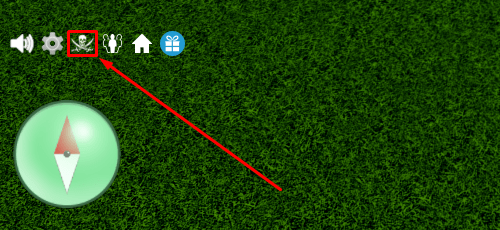
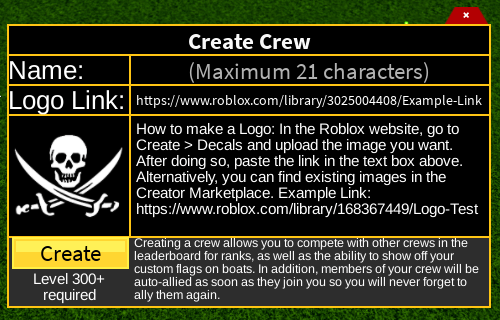
Doing so will bring up the Crew menu shown below.
Step 2: Create a Crew Name
In the Name: box, you'll need to type in the name you want for your Crew (the maximum number of characters for a Crew name is 21).
Step 3: Choose a Logo
Although optional, you should choose a logo for your crew so that you can stand out from the crowd. There are two ways to do this, so let's go over the easy method first.
Method 1. Using an Existing Decal ID
You can use existing decals on Roblox as your crew's logo. We have a page full of decal IDs that you can search through.
Here are some examples that will fit in just fine in Blox Fruits:
NOTE: Decal IDs on their own will not work as a "Logo Link". Scroll a bit further down where we show you how to get Decal URLs from IDs. For your convenience, the table already has usable links!
Decal Name | Decal ID | Image | Decal Link |
|---|---|---|---|
Pirate flag | 14554912195 |
| https://create.roblox.com/store/asset/14554912195 |
Straw Hats Jolly Roger | 13535850827 |
| https://create.roblox.com/store/asset/13535850827 |
Whitebeard Emblem | 12614399593 |
| https://create.roblox.com/store/asset/12614399593/Whitebeard-Pirates-Flag |
Zoro's Flag | 11400156142 |
| https://create.roblox.com/store/asset/11400156142/ZoroFlag |
Ace's Flag | 6240215181 |
| https://create.roblox.com/store/asset/6240215181/ace-pirate-flag |
Chopper's Flag | 11844217668 |
| https://create.roblox.com/store/asset/11844217668 |
Law's Flag | 4966569548 |
| https://create.roblox.com/store/asset/4966569548 |




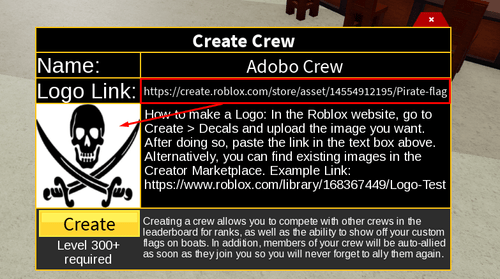
Once you've chosen a decal that you want, copy and paste your decal URL into the Logo Link: box:
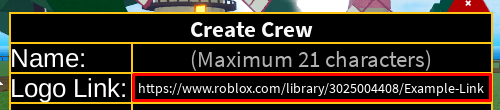
How to Get Decal URLs from IDs
Go to your browser then type the following in the address bar, replacing the "[DECAL ID]" part with the actual decal ID you want to use: roblox.com/library/[DECAL ID]
For example, if you want to use the ID "14554912195" from the table above, you will type: roblox.com/library/14554912195.

This will automatically open its Creator Store page:
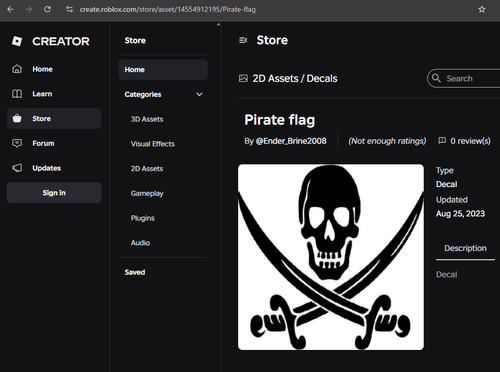
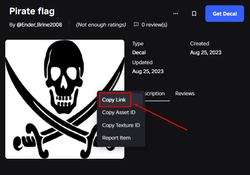
Right click the image in this page, then press the "Copy Link" option:
Finally, paste the link into the Logo Link section of the crew creation menu.
Method 2. Upload Your Own Logo
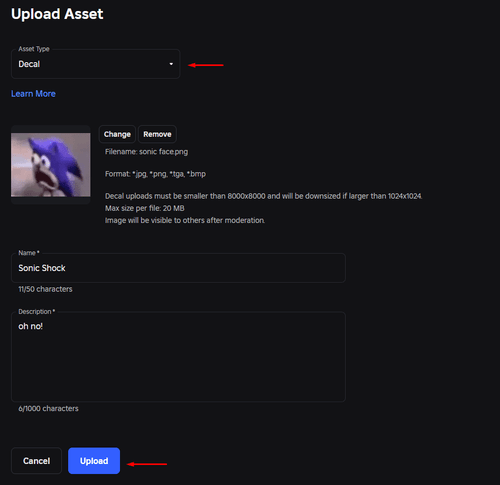
To upload your own logo, you'll need to visit the Roblox Creator decal upload page. The page should look like this:
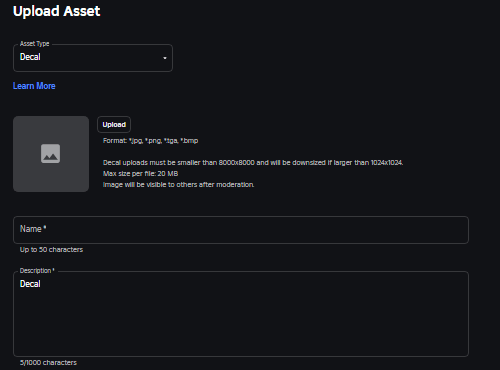
First, make sure the Asset Type at the top is set to Decal. Then click on the Upload button to select the image you want your Crew to have as its logo.
In the Name* box, you'll need to give your decal a name. The same goes for the Description* box, you'll need to give your decal even just a simple description.
Once all the boxes have been filled, you'll then need to click on the Upload button at the bottom of the menu.
Getting the Logo Link for Blox Fruits
After your logo has been created, you'll need to get the decal URL to use it in Blox Fruits.
Go to the Roblox homepage and open your Inventory. There, select the Decals category and you should see the image you just uploaded.
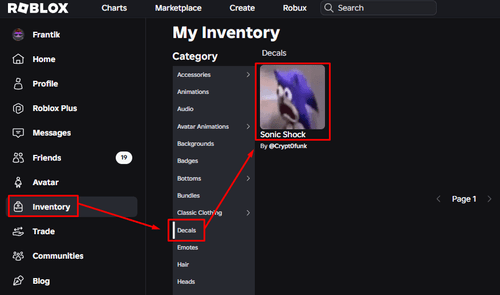
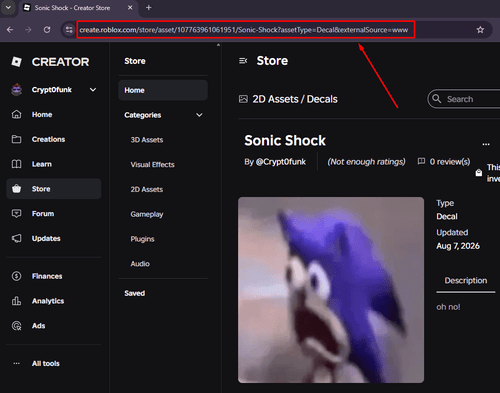
Click the image you uploaded to open its Creator Store page. From here, grab the URL up top, on your address bar (copy the whole link).
Return to the Blox Fruits Crew menu, and copy and paste your decal's URL into the Logo Link: box and press enter to complete the upload:
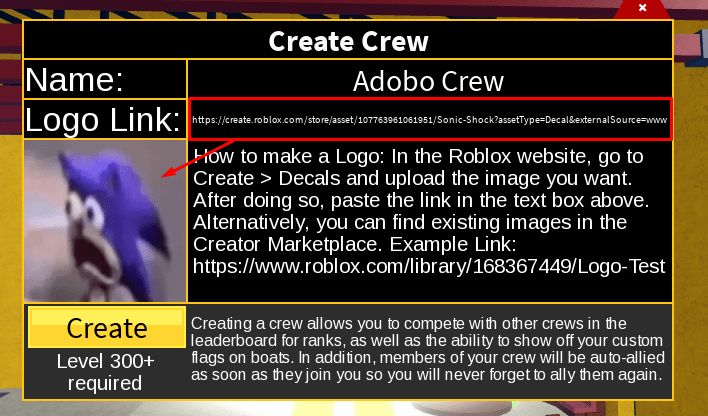
Step 4: Create Your Crew
Once you've uploaded your Logo, you'll need to stay on the Blox Fruits Crew menu and then click the Create button at the bottom: