Best Settings for RIVALS - Crosshairs, High FPS, Sensitivity, Etc.
Get that win streak up with these settings!

Tell us about your article reading experience.
- No
- Sort of
- Yes
As with any competitive FPS, Roblox's RIVALS gives you plenty of ways to fine-tune your game to give you an edge in battle. In this guide, we'll share with you some of the best settings to help you win more duels and just have a smoother overall experience.
The Best Video Settings
With varying devices and preferences, it's hard to pinpoint the "perfect" settings. Having said that, if you want to get a competitive advantage, here are some optimizations you can use.
Performance Options
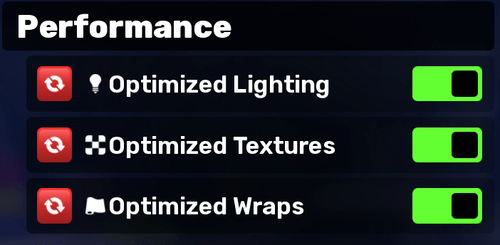
Under Performance, turn all of the "Optimized" settings on. This will reduce visual clutter and increase clarity in every map, allowing you to spot your enemies with ease.
This will also help boost your FPS for smoother gameplay.
Camera Settings
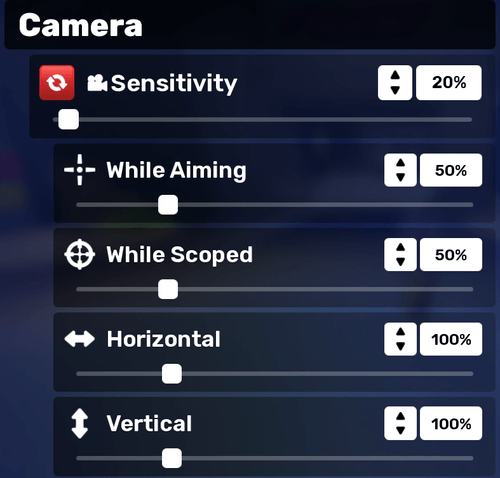
A lot of this section will be purely based on personal preference, with a few exceptions. Let's go over the important options one by one:
Option Name | Setting | Reason |
|---|---|---|
Sensitivity | Personal Preference | This is purely based on your comfort, desk setup, and mouse. Experiment with this in the Shooting Range. |
Field of View | 100 | This is the sweet spot where things don't look too distorted. |
Gameplay Effects | Off | Keeps your FOV consistent. |
Camera Shake | Off | Improves visual clarity. |
Hide Muzzle Flashes | Off | Reduces clutter. |
With these camera settings, you'll have reduced visual clutter and have perfect clarity even while sprinting or boosting yourself around the map.
For Sensitivity, you want to set it low enough that you can track precisely, but high enough that you can flick comfortably.
Game Settings
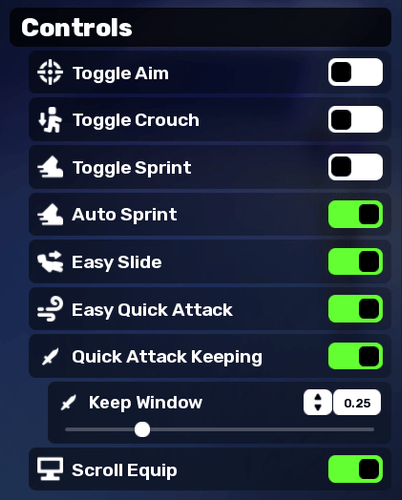
Under the "Game" tab, scroll down to the "Controls" section. There, make sure that you have the following settings:
Option Name | Setting | Reason |
|---|---|---|
Toggle Aim | Off | Smoother control. |
Toggle Crouch | Off | Smoother control. |
Toggle Sprint | Off | Smoother control. |
Auto Sprint | On | Removes the need to hold a sprint button. |
Easy Slide | On | Easier sliding if you ever use crouch for it. |
Easy Quick Attack | On | Faster ability use (especially useful with Scythe) |
Quick Attack Keeping | On | Good to have on if you need to melee afterwards. |
Most, if not all of these should be set this way by default, but it doesn't hurt to double check. These will make sure that your gunplay and movement all flow smoothly.
The Best Keybinds
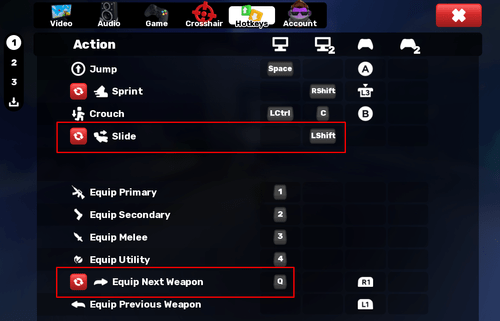
To be perfectly blunt, the default keybinds are nearly perfect and you don't have to change much. The only changes worth making here are the following:
Action | Keybind | Reason |
|---|---|---|
Slide | Left Shift | Since we have Auto Sprint on, we can turn this button into a more consistent dedicated slide button. |
Equip Next Weapon | Q | This makes it easier to quick swap to your secondary in the heat of battle. |
The Best Crosshairs
The best crosshair in RIVALS is mainly whatever you feel comfortable using, and there are plenty of ways to adjust it to your liking.
If you don't want to go through all that trial and error, we have a couple good ones you can try.
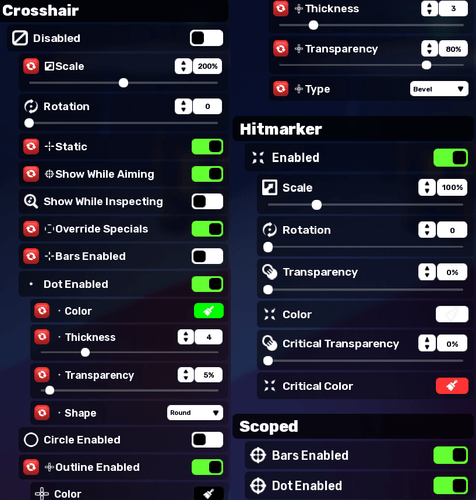
Since crosshair import codes tend to break easily when being copied, we'll just show you the exact settings to copy, including color codes whenever needed.
Crosshair #1. Competitive Cross
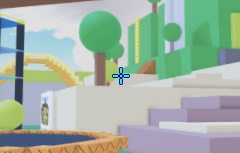
This is a common but very effective crosshair that people often use with varying colors. For visibility, we're going with a bright cyan cross, but you're free to use any color for it.
It's tailored towards players who already have good aim and want pure precision. For beginners, this may be a little too small to work for you, so consider the other option if that's the case.
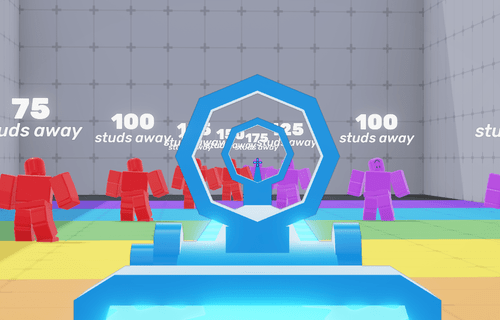
COLORS:
- Main & Dot Color: #00ffff
- Outline Color: #000082
SETTINGS:
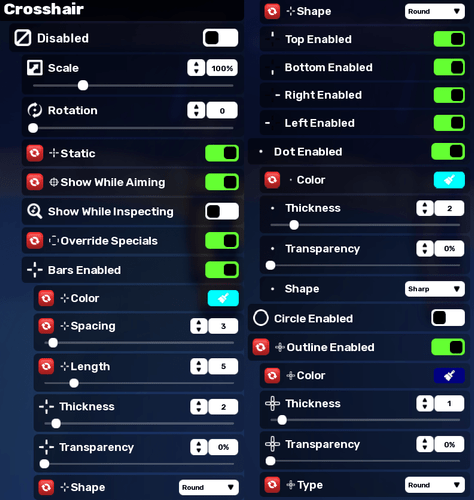
Crosshair #2. Author's Choice
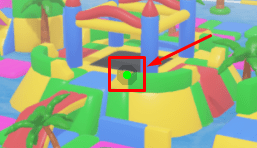
This one is a personal pick that is very beginner-friendly. It's basically a plain green dot with an outline, and it's something that has gotten me to high ranks in various other competitive games.
The green color completely contrasts against most things you'll be pointing it at, and the faint black outline makes it visible in the very rare times you'll be shooting at something that's light green.
Yes, it's relatively big, but you'll find that it's just enough to cover even far enemies when you aim down sights. If the size is an issue for you, simply turn the scale down to around 125-150%.
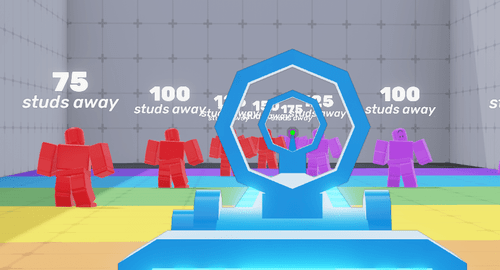
COLORS:
- Dot Color: #00ff00 (Transparency: 5%)
- Outline Color: #000000 (Transparency: 80%)
SETTINGS: