How to Turn Auto Shoot On or Off in RIVALS (PC & Mobile)
Conserve your ammo, control your gun yourself!

Pick an answer, then tell us anything we missed or could do better.
- No
- Sort of
- Yes
If you've been playing RIVALS on mobile or with a controller on PC, then you've definitely experienced the game's rigid auto shooting feature. In this guide, we'll show you exactly how to turn it off (or back on) regardless of what platform you're playing on.
IMPORTANT NOTE: If you tried doing this on PC with mouse & keyboard and are now stuck, we'll also show you how to navigate the menus without a cursor.
Turning Auto Shoot On/Off
Whether you're on mobile or PC, you can adjust this by first pressing the settings button on the upper right corner of the screen.

Press the "Game" tab and scroll to the very bottom, where you'll find the Handicaps section.
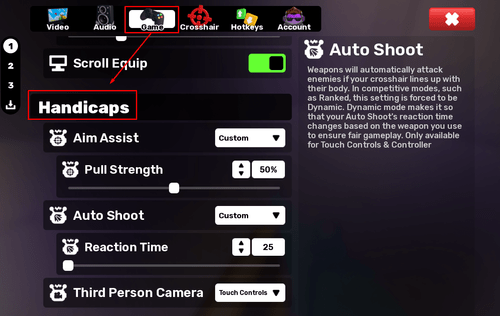
From here, you can turn Auto Shoot on and off by setting it to either Custom/Dynamic or Disabled. Ideally, you want this to be at the lowest setting on Custom if you actually want to use Auto Shoot, otherwise, turn it off by picking Disabled.
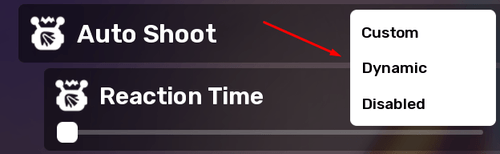
While on, your character will automatically fire when an enemy walks into your crosshair. This isn't the same as Aim Assist, as all this does is fire your gun for you. This is why having it at the lowest reaction time is ideal.
How to Get it Working on PC
If you want to use it on PC, you must scroll down to Accessibility and set the Control Scheme to either "Touch Buttons" or "Controller". This will activate auto firing even if you're on PC.
WARNING: Activating this on PC will prevent you from turning your camera unless you're playing with a controller. It will auto fire, but you'll be staring straight forward the entire time.
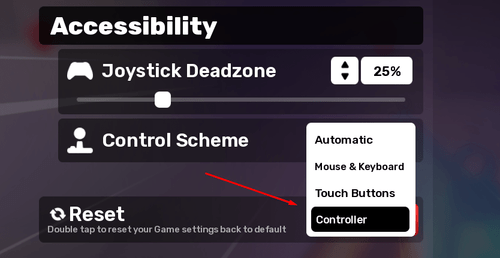
It's worth noting that setting this to "Touch Buttons" will prevent you from moving your camera, regardless of whether or not you're using a controller. Set it to "Controller" instead if you have one.
Stuck With No Cursor?
If you set yourself to a different control scheme on PC and have no cursor to set it back, you're not locked out from playing forever. Your cursor is simply invisible, but you can still click everything normally.
Move your mouse so that it's on the upper right corner of the screen and try your best to open the settings from here.
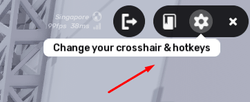
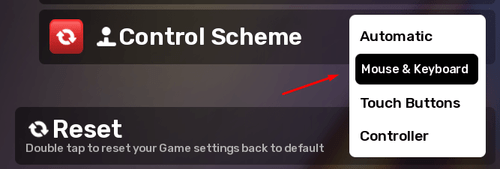
From here, scroll back down to the Accessibility section of the Game tab and change your Control Scheme back to either "Mouse & Keyboard" or "Automatic". Your cursor will immediately become visible again once you pick either of the two.
Auto Shoot is Not Banned in Ranked
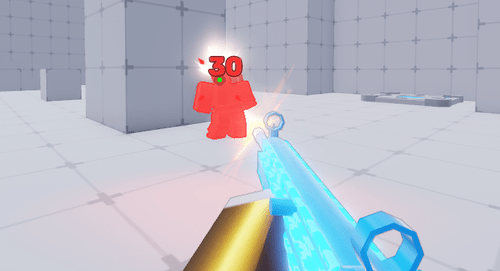
In case you are wondering, Auto Shoot still works in Ranked, but it is heavily nerfed compared to its regular version.
Using Auto Shoot in this mode automatically sets it to a slow version of the Dynamic setting, so your reaction time will be awful. It is highly recommended to turn it off if you're going to play competitively, as you'll miss a lot of shots otherwise.
Pick an answer, then tell us anything we missed or could do better.
- No
- Sort of
- Yes